quickstart
let’s get prism running.
your download should have started. you only need to do this setup once—it usually takes about five minutes.
nothing downloaded? enter your email again.
-
1
unzip prism.
open your Downloads folder and double-click the Prism ZIP. you’ll get a normal folder named prism. leave that folder somewhere you won’t delete it.
prism.zipprism -
2
open chrome’s extensions page.
copy
chrome://extensions, paste it into Chrome’s address bar, and press Enter. turn on Developer mode in the top-right, then click Load unpacked.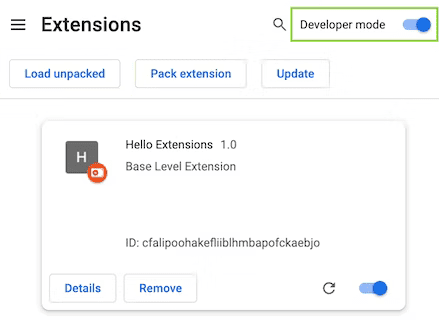
-
3
choose the prism folder.
in the window that opens, select the prism folder you just unzipped, then click Select or Open. Prism will now appear on the Extensions page.
prism -
4
allow user scripts.
on Prism’s extension card, click Details. scroll down and switch on Allow User Scripts. if you don’t see it, make sure Chrome is up to date.

-
5
pin prism.
click Chrome’s puzzle-piece Extensions icon, find Prism, and click the pin. the Prism icon will stay beside your address bar.
sambharia.comExtensionsPrism
-
6
connect your model.
open any normal website. press ⌘ ⇧ X on Mac or Ctrl ⇧ X on Windows/Linux. type
/settings, open AI connection, then add your provider, model, and API key. click Test connection, then Save connection.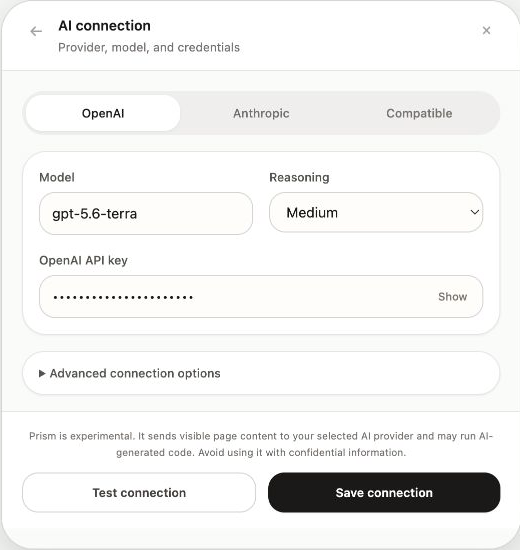
your credentials stay in Chrome’s local extension storage. Prism sends your prompt and relevant visible page content to the provider you choose.
-
7
make the web yours.
press the shortcut again and try something small:
“hide the right sidebar and give the article more room.”
press Enter. Prism will inspect the page, make the change, and remember it for that website.
watch the demo again →